Are you getting error "Please insert the CD-ROM"? Its OK you can fix it, some people will share cracks and a lot of stuffs to bypass this error, I will never recommend to use EXE crack, such files have virus, malware, rats and more harmful stuffs. So,what is the legit way to fix this issue? First please don't relate it to The House Of The Dead only, It can occur on many other games as well such as Need For Speed II, Contra 1987, Aladdin 1993, Hercules 1997, Zuma Deluxe. I'm just using THOTD game as an example.
How to fix "Please insert the CD-ROM"
This is very simple, all games that are developed in 90's era or must required Direct X. In this modern era still some games are using the old version of Direct X. Download DirectX R and install DirectX (R) Once you did you will no longer receive this error.
An opening port is quite easy if you did everything perfectly. When I was trying to open port or forwarding a port I faced a lot of issues, First finding a good and accurate method on the internet in some cases is not easy, I tried on USB Dongle, I tried on DSL but unfortunately no success.
Sometimes windows firewall don't allow to Open a port, anyway, we will bypass that in this tutorial you have to follow me step by step to get rid of everything and open your port and enjoy.
Image source: openport.io
How to Forward/Open a Port
Step: 1
You need to have a software called Port Forward, click here to download it. Port Forward is trial software which will help us to bypass Windows firewall.
Step: 2
Login to your modem setting area, or modem panel. At my case my modem is PTCL, and panel URI is 192.168.10.1 After login, check your WAN Info and confirm it, which WAN Interface is connected, that assigned an IP to your computer.
Step: 3
Now go to Advanced Setup > NAT > Virtual Servers. Now you have to ADD a Virtual Server, Click on ADD
Step: 4
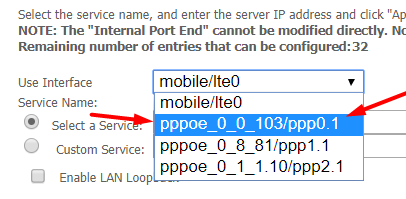
Now choose the WAN Use Interface which was connected in Step 2.
You can Select a Service or you can put a Custom Service name. Keep the following setting.
Custom Service = TestingPort
Status = Enable
External Port Start = 27051
External Port End = 27051
Protocol = TCP/UDP
Internal Port Start = 27051
Internal Port End = 27051
But, wait what about the Server IP Address: ?, We have to find it manually there are 2 ways to find it.
First: Open CMD and type ipconfig and hit ENTER
Under your network connection, IPV4 is your local machine IP address.
Second: Open your Network Properties. And you will find your IPV4 address there as well. I think the second one is more easy and accurate.
Now enter this IP Address into the Server IP Address, and click Apply/Save.
And that's all you did it.
Step: 5
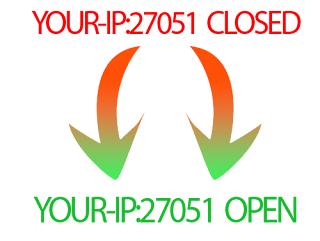
Let's go and verify it. First, you have to verify it using PortForward Software that you download in Step 1.
Once you have checked your port using PortForward and you got the result OPEN, its mean your Port is available to the public on the internet, so they can access your port using the public IP address and Port. You can check your port on various sites here I'm checking it with https://portchecker.co
Video Tutorial
If you have any question or facing problem you can simply comment below I try my best to help you out and fix the issue you are facing.
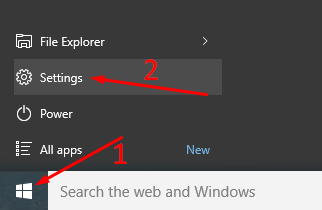
Are you facing trouble with your Windows 10? Want to install renew your Windows 10 but didn't have a USB or CD or DVD? Don't worry you can install your Windows 10, without having a Windows 10 image CD / DVD or USB. You have to follow few simple steps and you did it.
A popup Window will appear select Remove Everything. (I recommend to select Remove Everything)
Step: 6
Everything is perfect, you may need to wait for some time. Removing everything will take time a little bit longer, but trust me that is the best option, If your PC hit by some viruses like trojan, rat, horse or some malware, It will completely clean your PC from that.
Once this is done, you will get to the Windows 10 installation setup after Restart, I hope you will pass the other simple steps of the Windows installation.
And that's all you will get to the Windows Installation. I don't have the other screenshots because of the PC restart after the step-6 and then enter to the boot Windows installation.
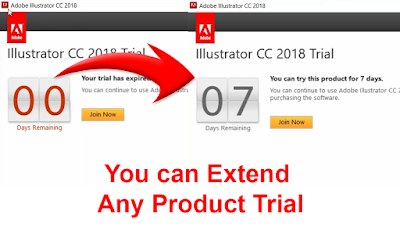
Adobe is has a lot of products but many of them are paid, but you can use them free for some time. Once the trial expired, you will need to pay for the product and then you can use that product, otherwise, you will get the error 00 Days Remaining.
Adobe Illustrator has 7 days trial period, Adobe Photoshop has 30 days trial period, Adobe AfterEffects has 7days trial period, Adobe Premiere Prohas 7days trial period, etc. Once it is expired you can use it the software again.
So, I will show you how to get rid of it, you can extend it for free. Please keep in mind this is not crack or something. It is just a trick with which you can extend the Trial Period of the products.
How to Restart the Trial Period of Adobe
Step 1:
You have to find the AMT folder in the folder of your Adobe Product. To make it concise I will use Adobe Illustrator CC 2018 in my example.
Goto Program Files > Adobe > Adobe Illustrator CC 2018 > Support Files > Contents > Windows > AMT
Path : C:\Program Files\Adobe\Adobe Illustrator CC 2018\Support Files\Contents\Windows\AMT
Here you will find a file name application.xml, Right click on it Cut and Paste it in any other drive.
Step 2: Right click on application.xml and open it with Notepad. Now find <Data key="TrialSerialNumber"> You will see a number there for example: <Data key="TrialSerialNumber">926287011921234454671866</Data> Change it to <Data key="TrialSerialNumber">926287011921234454671867</Data> I mean just +1 to last number, and save the notpad.
Step 3: Now Cut the application.xmland Paste it back in the AMT folder.
Step 4: (If you're logged in, then no need of this step) Disconnect the internet to bypass the login.
Step 5:
Sign In Later
Start Trial :) I mean again ;)
Video Tutorial
If you have any question or facing problem or have some suggestion comment below.
While starting Adobe After Effects CC 2019, I was facing the error "cloud not convert Unicode characters ( 23::46 )". This is error was encountered because of the System Locale which is set to Unicode language. So I fixed it and now letting you how to fix it.
How to fix error 23::46
Step 1:
Open Control Panel > Clock, Language, and Region > Open Region
Location path: Control Panel\Clock, Language, and Region
Step 2: Click Administrative > Change System Locale
Step 3: Uncheck the Beta: Use Unicode UTF-8 for worldwide language support, and hit OK
And press Restart Now.
After the restart, the error will vanish and you will enjoy the tool.
Video Tutorial
If you have any question or suggestion comment below.
Recently, my windows were encountered with an error. I found the fix for that and want to share it with you guys. It's simple, easy and quick FIX.
When you have to full screen any video player or game the taskbar won't hide automatically. I was facing this issue when I open youtube video in fullscreen mode or open any video in VLC the taskbar won't hide.
Screenshots
See taskbar is visible during fullscreen
When it is fixed
How To Fix It
Step 1:
Right-click on the Taskbar and click Task Manager.
Step 2:
Now click Windows Explorer and then click the Restart button which in the bottom of the Task Manager.
And wait for a few seconds, I mean about 20seconds and there you go, everything is ok.
Video Tutorial
Comment below if you have any question regarding this post, or you can appreciate me as well. Thanks
Watermark in windows 10 and windows 8 is somehow irritative. If you don't want to buy just want to remove the mark, then let me show you how to remove Watermark and SmartScreen with one click. So just follow these steps you have did it.
Today I'm sharing you a method that will help you to register Windows for FREE. It will work for all version of windows. Your windows will be registered with the Microsoft officially released Product Key. These are the legit keys. Reference So I don't think so it will cause an issue, I'm sharing you my method.
Product Keys
Home: TX9XD-98N7V-6WMQ6-BX7FG-H8Q99
Home N: 3KHY7-WNT83-DGQKR-F7HPR-844BM
Home Single Language: 7HNRX-D7KGG-3K4RQ-4WPJ4-YTDFH
Home Country Specific: PVMJN-6DFY6-9CCP6-7BKTT-D3WVR
Professional: W269N-WFGWX-YVC9B-4J6C9-T83GX
Professional N: MH37W-N47XK-V7XM9-C7227-GCQG9
Education: NW6C2-QMPVW-D7KKK-3GKT6-VCFB2
Education N: 2WH4N-8QGBV-H22JP-CT43Q-MDWWJ
Enterprise: NPPR9-FWDCX-D2C8J-H872K-2YT43
Enterprise N: DPH2V-TTNVB-4X9Q3-TJR4H-KHJW4
These are the keys, you can copy the key according to your windows edition. At my case, I was using windows 10 Education. So I use NW6C2-QMPVW-D7KKK-3GKT6-VCFB2 But you just need to choose the key which matches your windows edition.
Method
Open CMD as Administrator
Now Type these commands
slmgr /ipk Your_KEY
Replace YOUR_KEY with any of the above keys and Press ENTER.
slmgr /ipk NW6C2-QMPVW-D7KKK-3GKT6-VCFB2
Now enter
slmgr /skms kms8.msguides.com
and press ENTER
Now enter
slmgr /ato
Press ENTER and wait for the response.
Hurrah you did it, you got the registered version you can verify it and enjoy.










![After Effects Startup Error 23::46 - [SOLVED]](https://blogger.googleusercontent.com/img/b/R29vZ2xl/AVvXsEgPxCRTuyq0VYvv9pekoKQxN8yfgUxMktnGFKXj8hfNFqg5uKbMNxVJuEwbY9eMnRsh2doOutuFBWnXyGYaSRzsnoHUyQbdp71Va3oN0qmKAQNmgazanFm-tioKhaQHUiB_GPdHACF1iwjb/s320/After+Effects+Error+23+46+Solved.png)


![Taskbar is visible when fullscreen - [SOLVED]](https://blogger.googleusercontent.com/img/b/R29vZ2xl/AVvXsEgZajVqSpoh5XBqQNZ5vXlUp_3R26m_Ba3gH9TQCarA8JPbzBYMQyo-JJzcsDzg7VIb8PBdLk32asT4SkeNl92y6RpQLHpTe1d-YDQUyKRVme8wtAg7EXkLLREsUBMjDsDKr5OHfOs_17T_/s320/Taskbar-is-visible-when-video-is-full-screen-thumbnail.png "Taskbar is visible when fullscreen - [SOLVED]")